Assign a Program to a Class
This feature is for SA, ML, MA, CA
There are two ways to do it. Both do the same thing: the class's students are enrolled in the Program straight away.
From the Program
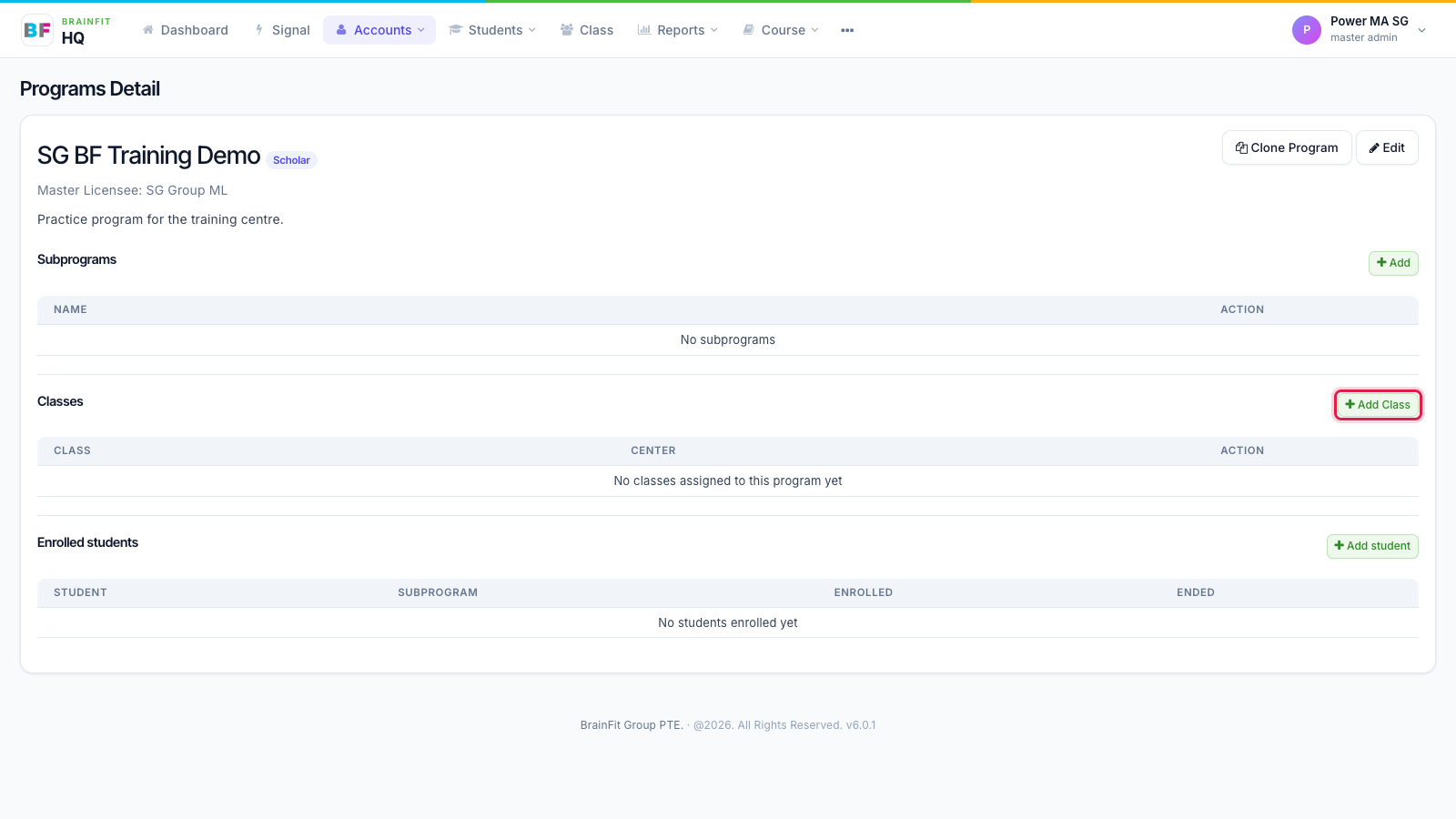
- Open the Program and click Add Class in the Classes section.
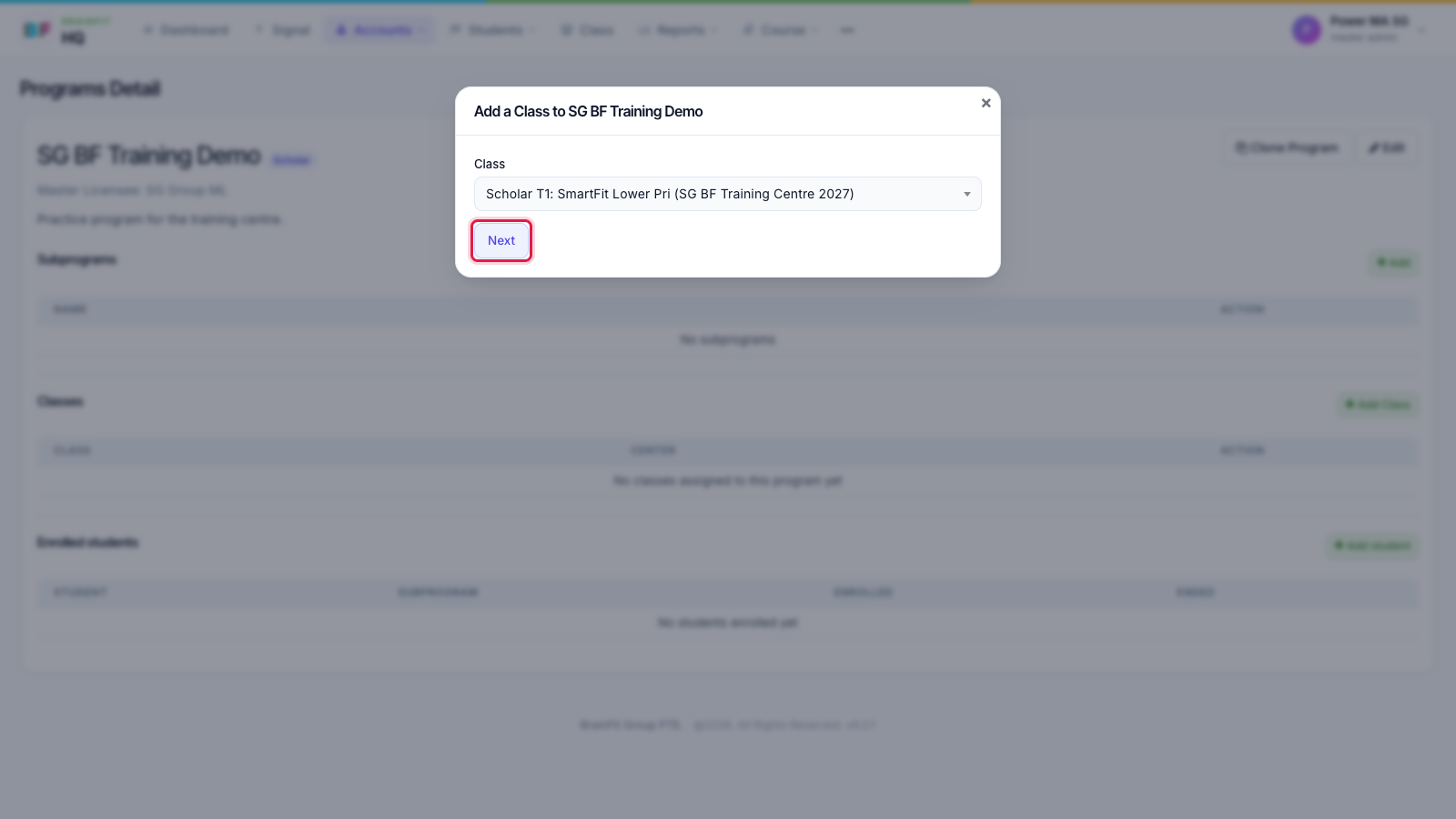
- Choose the class (type to search; the list shows each class with its centre), then click Next.
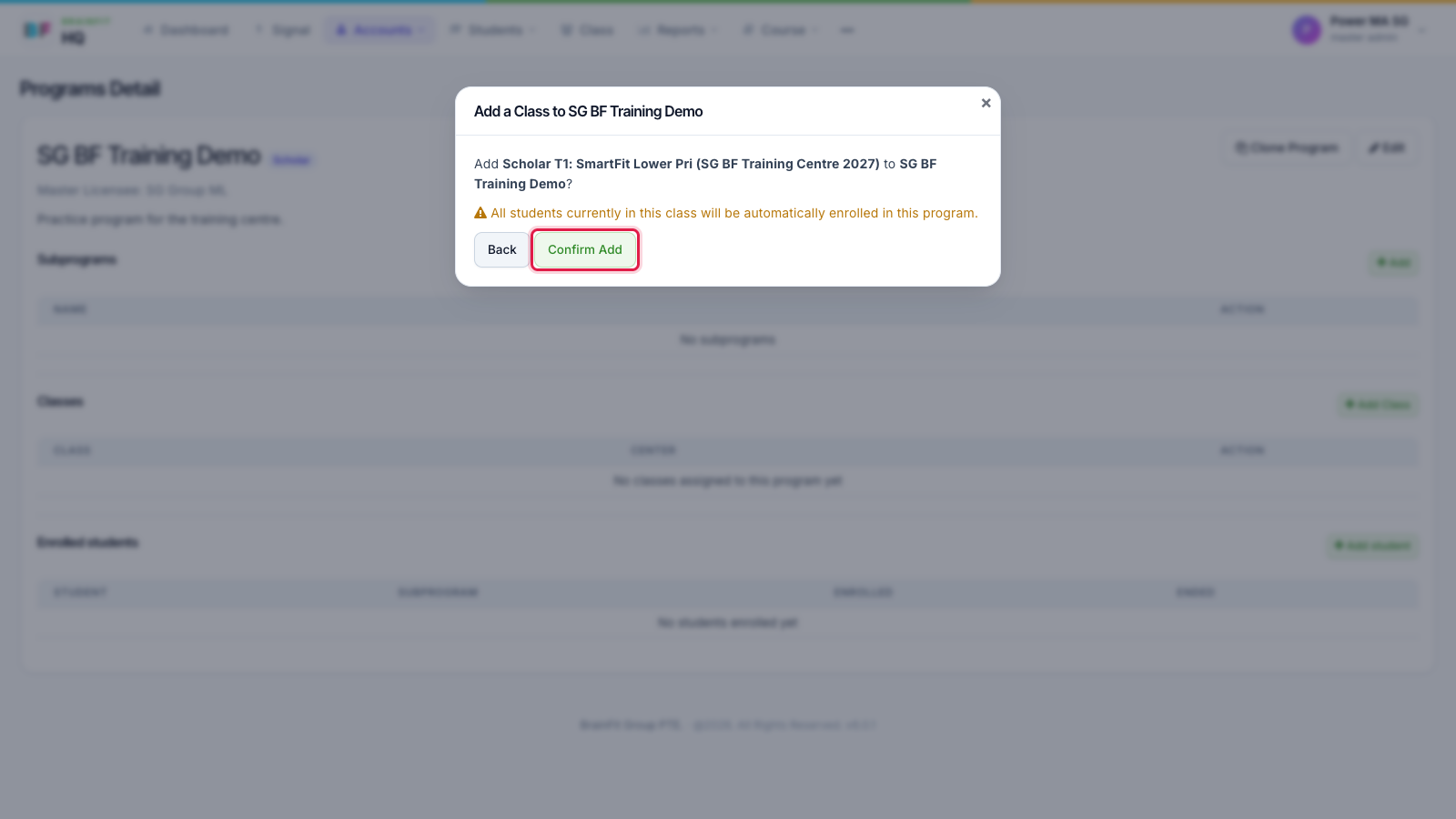
- Check the class and Program names and click Confirm Add.
- The class appears under Classes, and its students appear under Enrolled students with today's date.
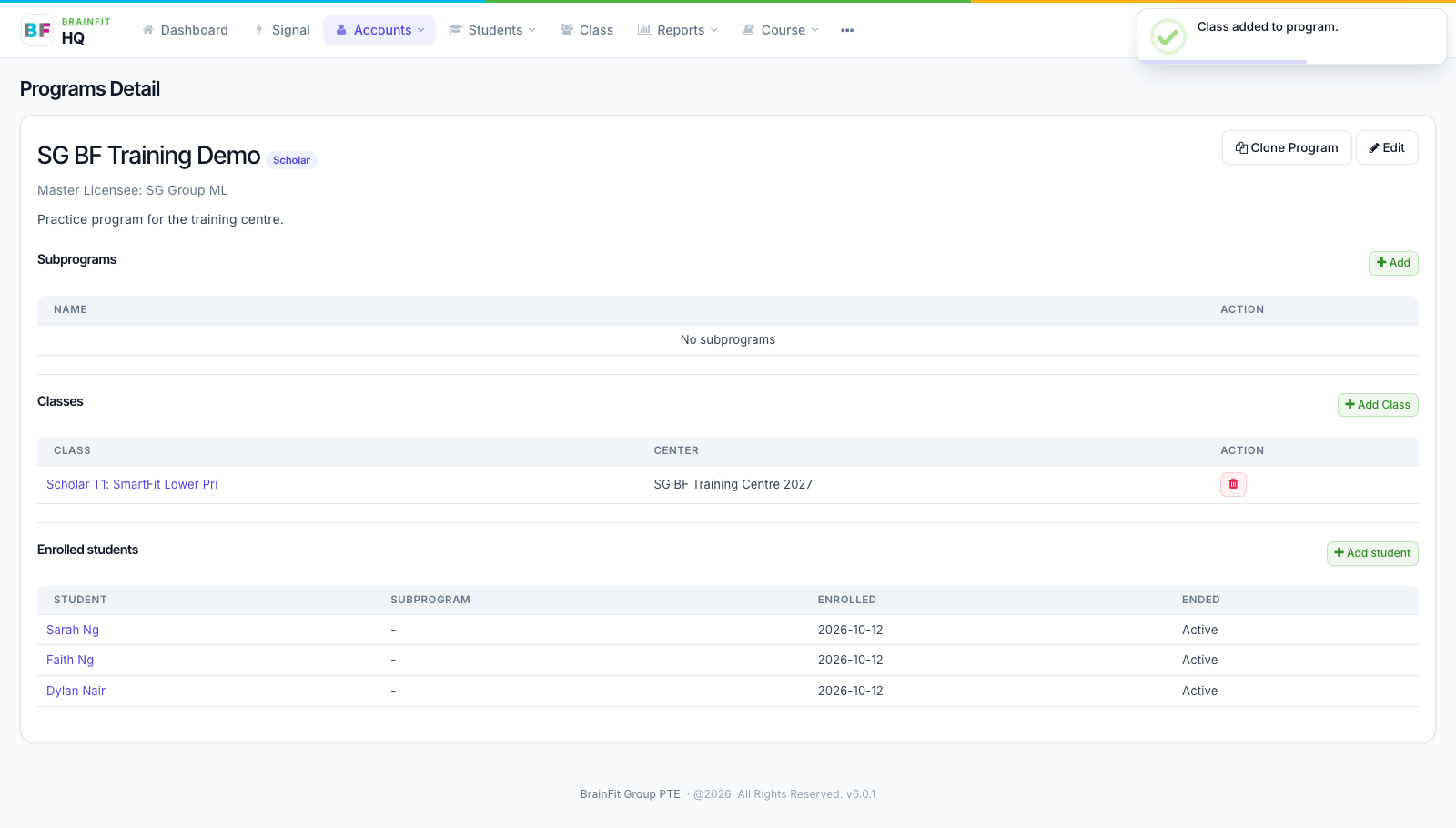
To take a class off the Program, click the red bin on its row under Classes.
From the Class
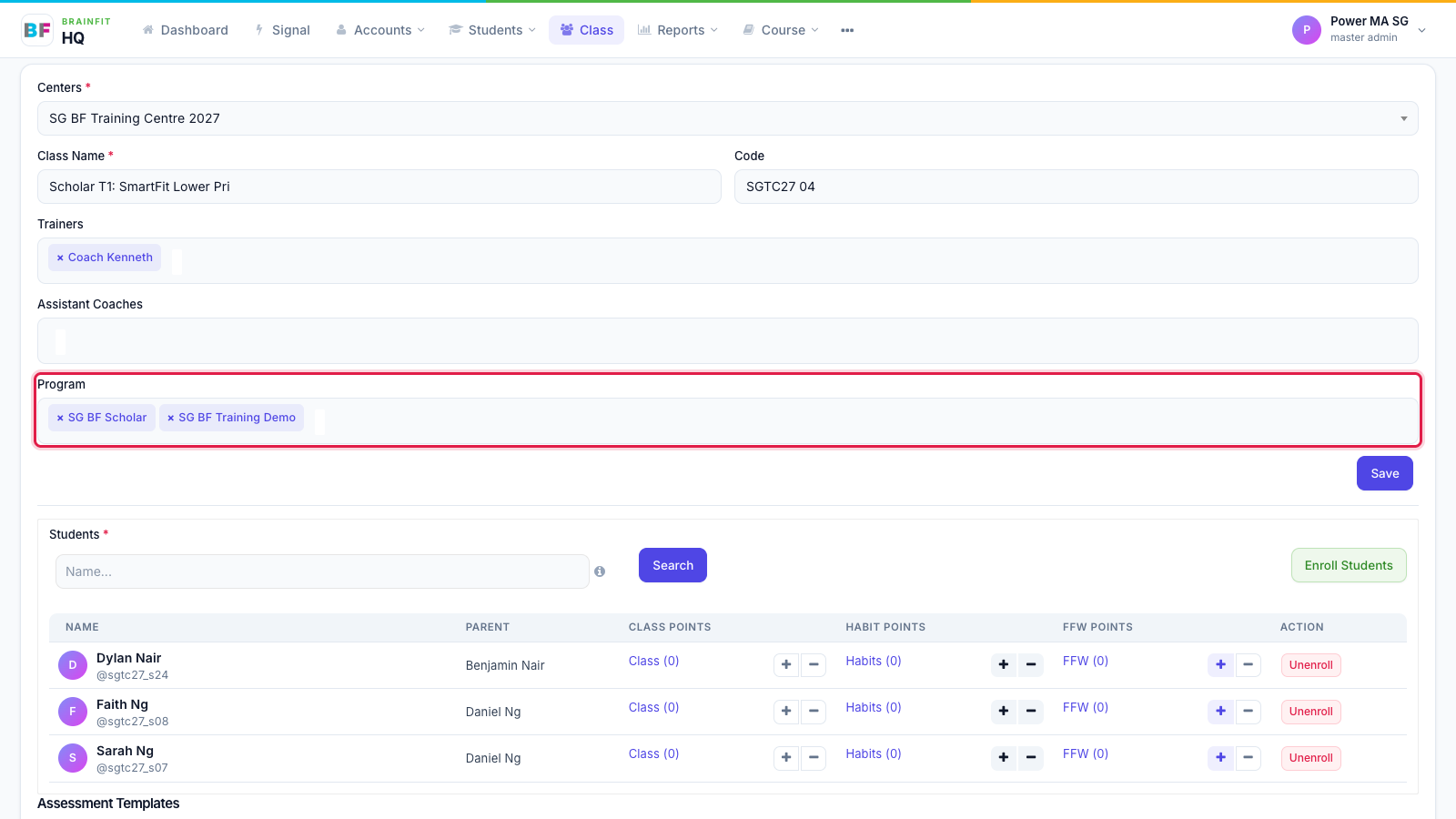
- In Class, open the class and click Edit.
- In the Program box, add (or remove with ×) the Programs this class belongs to, then click Save and confirm.
caution
Removing a Program here, or removing the class on the Program page, ends the enrolment of every student in that class (unless they are in the Program through another class). Their history is kept.
tip
Students who need to be in a Program without their class (for example a one-off trial) can be added one at a time with Add student on the Program page.